How to Add Custom Survey Elements Using HTML
About Using HTML Markup
HTML markup is the system of tags and elements used to structure content on the web. HTML stands for HyperText Markup Language, and it tells the browser how to display text, images, links, and other content. Survey Creator supports a dedicated input field called HTML that lets you display custom markup inside a survey. What it does:
- Displays formatted content, including links, images, custom text, etc.
- Does not collect responses
- Supports standard HTML markup syntax
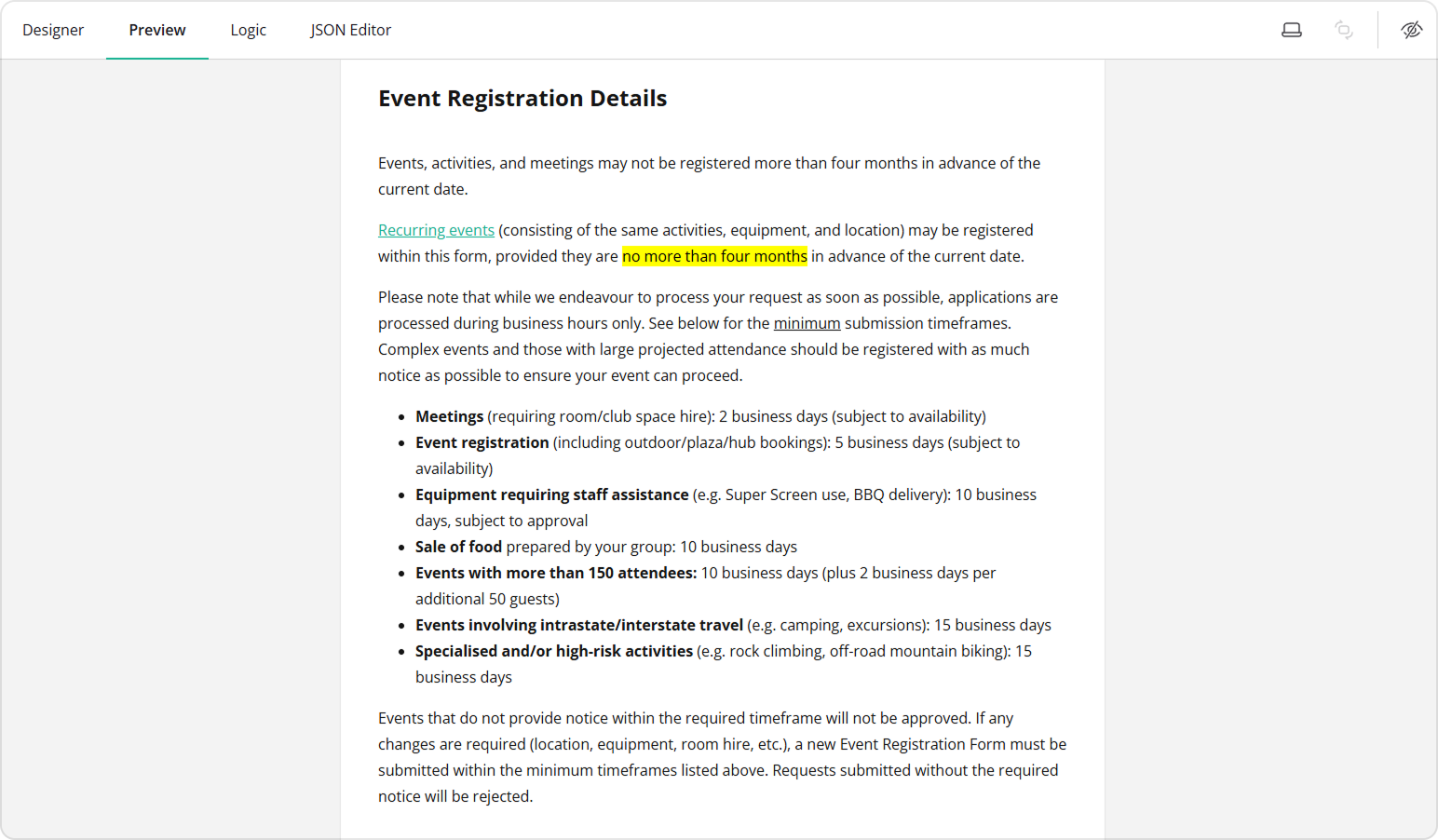
The image below shows the introduction page of a custom event registration form designed using the built-in HTML field:
How to Insert Custom HTML into a Form
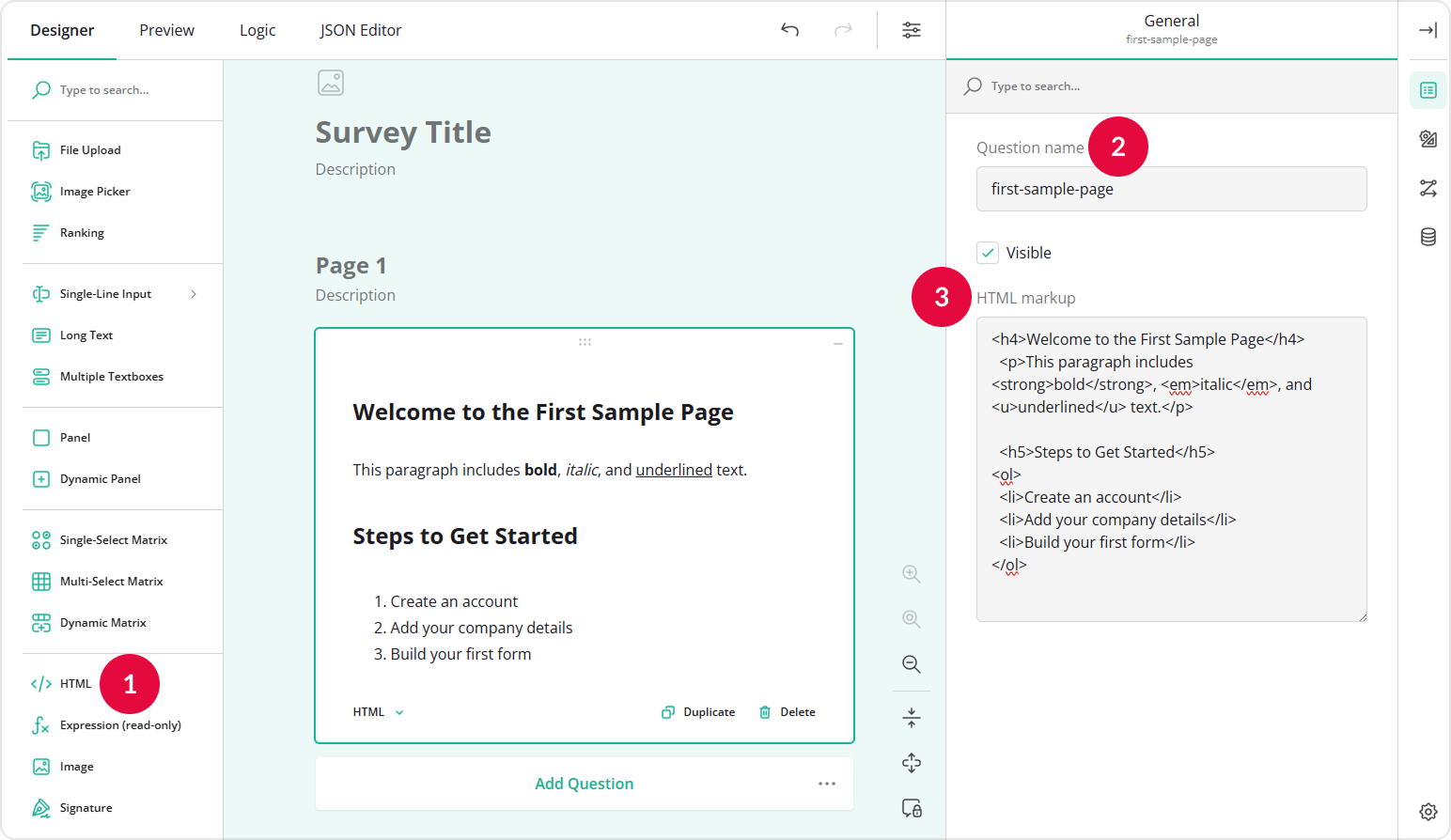
To add custom HTML markup in your form, follow these steps:
- Add an HTML input to your form.
- Assign a Question name (ID) to it.
- Enter your HTML markup in the HTML markup field.
Tags and Elements
HTML uses tags to define elements. For example:
<p>This is text.</p>
<p>– Opening tag.</p>– Closing tag.This is text.– Element content.
Some tags are self-closing, which means they do not require a separate closing tag:
Line one<br>Line two
<hr>
br– Inserts a line break within text.hr– Inserts a thematic break (typically rendered as a horizontal rule) between sections.
Attributes
Attributes provide additional information about elements. For example:
<a href="https://surveyjs.io/" target="_blank">Visit SurveyJS website</a>
href– Specifies the URL the link points to.target– Determines where the linked document is opened. For example,"_blank"opens the link in a new browser tab.
<img src="photo.jpg" alt="Photo">
src– Specifies the path or URL of the image file.alt– Provides alternative text displayed if the image cannot be loaded and used by screen readers for accessibility.
Common HTML Layout Tags
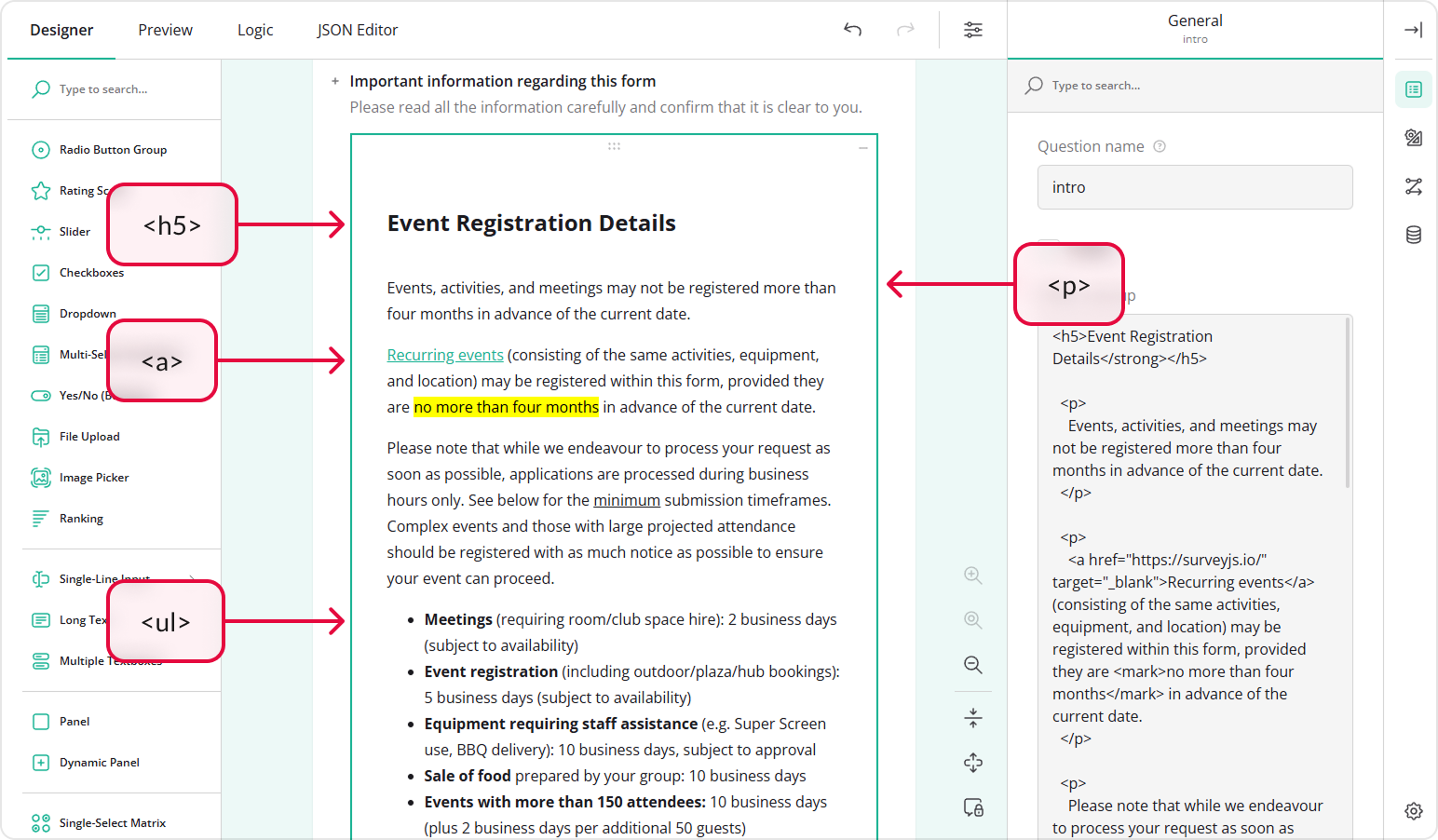
Headings (h1–h6)
To structure content hierarchically, use the h1-h6 headings. h1 is the largest heading, h6 the smallest.
<h1>Main Title</h1>
<h2>Subsection</h2>
Paragraphs
For regular text blocks, use the <p> tag.
<p>This is a paragraph.</p>
Links
To create clickable links, use the <a> tag.
<a href="https://surveyjs.io/" target="_blank">Visit SurveyJS website</a>
Images
To display images, use the <img> tag.
<img src="logo.png" alt="Company Logo" width="200px;">
Lists
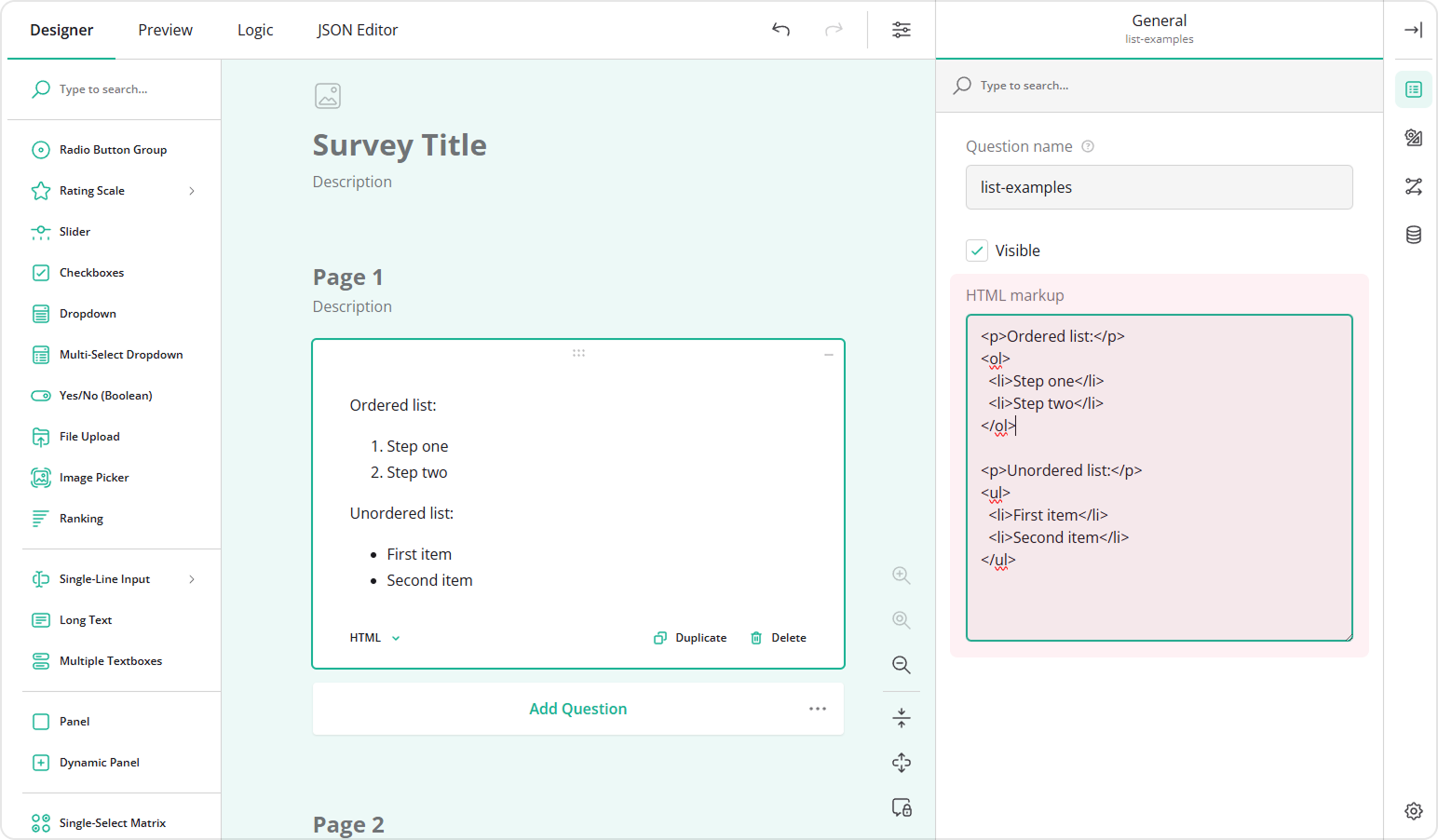
For unordered lists, use the <ul> tag:
<ul>
  <li>First item</li>
  <li>Second item</li>
</ul>
For ordered lists, use the <ol> tag:
<ol>
  <li>Step one</li>
  <li>Step two</li>
</ol>
Div and Span
The <div> and <span> elements are generic containers used to structure and style content. They do not add semantic meaning but are essential for layout and formatting.
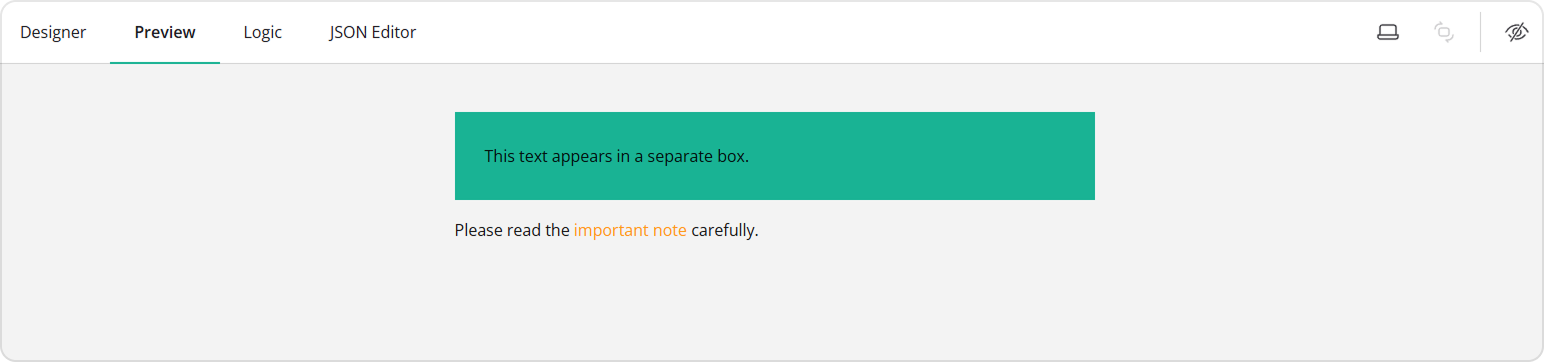
<div>– A block-level container. It creates a section that starts on a new line and typically spans the full available width. Use it to group larger sections of content or create layout blocks.<span>– An inline container. It is used within a line of text to apply styles or target a specific portion of content without breaking the text flow.
<div style="background: #19B394; padding: 30px;">
  This text appears in a separate box.
</div>
<p>
  Please read the <span style="color: #FF9814;">important note</span> carefully.
</p>
Common HTML Text Formatting Tags
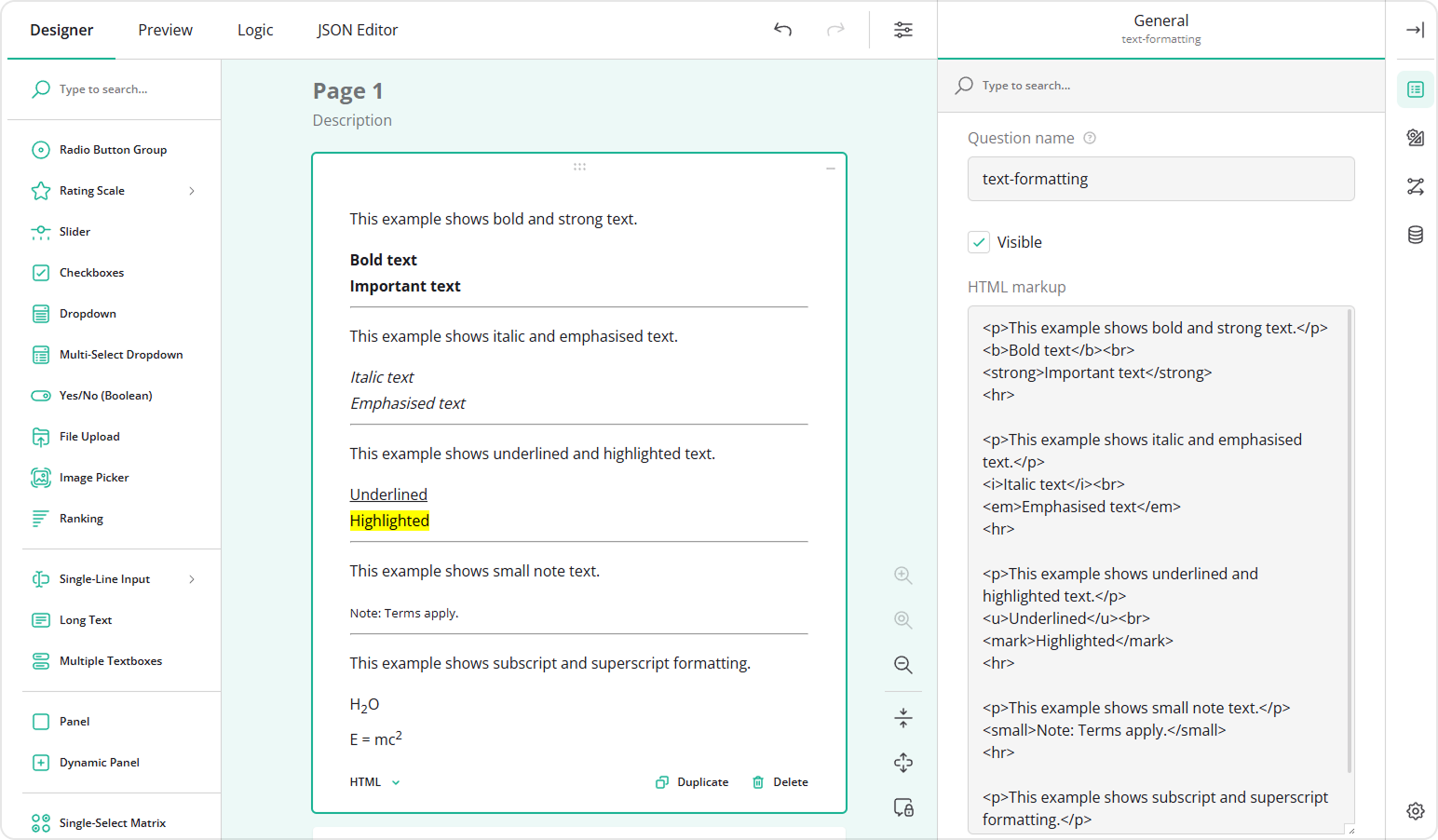
HTML includes a range of text-level elements that enhance readability and help emphasize key information. Some of these tags are purely visual, while others carry semantic meaning that improves accessibility and document structure.
Bold and Strong Importance
<b>– Renders text in bold without implying additional importance.<strong>– Indicates strong importance; browsers typically display it in bold.
<b>Bold text</b>
<strong>Important text</strong>
Use <strong> for content that is semantically important. Use <b> to draw attention to text without conveying increased importance.
Italic and Emphasis
<i>– Displays text in italic without semantic emphasis.<em>– Indicates emphasized text; browsers typically render it in italic.
<i>Italic text</i>
<em>Emphasized text</em>
Use <em> when the emphasis affects the meaning of the sentence. Use <i> for stylistic purposes only.
Underline and Highlight
<u>– Underlines text.<mark>– Highlights text to indicate relevance or reference.
<u>Underlined</u>
<mark>Highlighted</mark>
Small and Fine Print
<small>– Displays text in a smaller font size, typically used for disclaimers or secondary information.
<small>Note: Terms apply.</small>
Subscript and Superscript
<sub>– Subscript text.<sup>– Superscript text.
H<sub>2</sub>O
E = mc<sup>2</sup>
Line Break and Horizontal Divider
<br>– Inserts a line break.<hr>– Inserts a thematic break between sections (usually rendered as a horizontal rule).
Line one<br>Line two
<hr>
Send feedback to the SurveyJS team
Need help? Visit our support page